
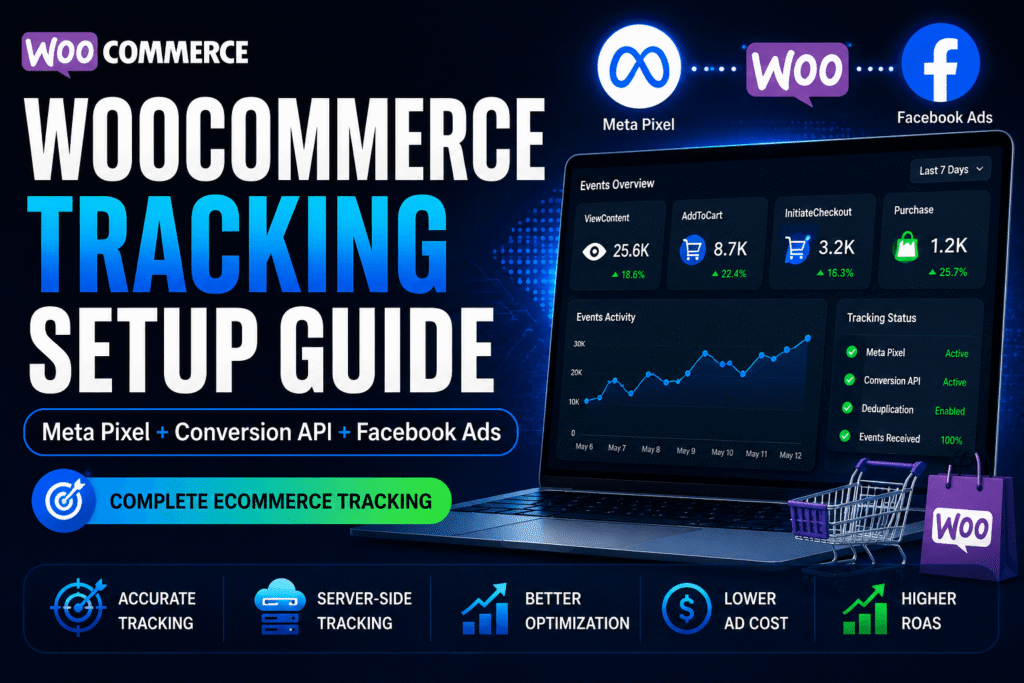
A WooCommerce Meta tracking setup should connect the store to a supported Meta tracking path, send the right ecommerce events, verify that browser and server event paths work as intended, and check that Purchase events represent completed orders rather than ordinary checkout visits. Meta Pixel can send browser-side events from the site, while Conversions API can add a server-side or integration-based path when the WooCommerce setup supports it.
For most store owners, the safest starting point is an officially supported WooCommerce-to-Meta integration, followed by careful event testing. Custom code or multiple tracking plugins should be used only when there is a clear technical reason, because duplicate Pixels, duplicate Purchase events, or mismatched browser/server events can make reporting less reliable.
What a WooCommerce Meta tracking setup includes
A practical WooCommerce setup usually needs three things working together: a Meta Pixel or dataset connection, ecommerce events that match important store actions, and a verification process inside Meta and WooCommerce. The goal is not to make every report perfectly identical. The goal is to make sure the intended events are sent at the right stage of the customer journey and that the store owner understands what the numbers can and cannot prove.
Important ecommerce actions may include product views, add-to-cart actions, checkout starts, and purchases. The exact event coverage depends on the selected integration, store theme, checkout flow, payment flow, consent configuration, and any other tracking tools already installed.
Meta Pixel and Conversions API in WooCommerce
Meta Pixel is the browser-side path. It runs on the website and can record supported visitor actions when the browser loads the relevant scripts and events. Pixel data can be affected by browser behavior, consent choices, script conflicts, checkout customization, caching, and ad blockers.
Conversions API is a server-side or integration-based path for sending supported event data to Meta. In WooCommerce, CAPI is often handled through an integration rather than custom code. It should be treated as an additional event path, not a magic replacement for testing, consent, or business records.
For a fuller comparison of these two tracking paths, read Meta Pixel vs Conversions API.
Choose a supported WooCommerce integration path
WooCommerce documents Meta for WooCommerce as an official extension for connecting a WooCommerce store with Meta commerce and advertising features. WooCommerce’s current documentation states that Conversions API is integrated out of the box in Meta for WooCommerce, and that Pixel and CAPI event deduplication is based on a unique event ID after the extension is set up.
WooCommerce also documents Meta Ads & Pixel for WooCommerce as a streamlined campaign and tracking path that includes Meta Pixel and Conversions API setup during onboarding. Because plugin names, onboarding screens, and labels can change, a public guide should avoid brittle click-by-click instructions and instead tell store owners to follow the current official plugin onboarding screens and verify the result.
A store should not run several Pixel or CAPI tools at the same time unless someone has intentionally designed how events will be separated or deduplicated. Multiple plugins, theme snippets, GTM tags, and partner integrations can all send overlapping events if they are enabled together.
Connect WooCommerce and Meta
Before connecting tracking, confirm that the store has access to the correct WordPress admin, WooCommerce store, Meta business assets, page, ad account, dataset or Pixel, and catalog where relevant. Then use the selected supported integration to connect WooCommerce with Meta.
During setup, choose the existing business assets where possible instead of creating unnecessary duplicate Pixels or catalogs. If the store already advertises, the existing Pixel or dataset may contain useful historical signals. If the setup creates a new asset by mistake, reporting and optimization history can become split across assets.
Verify ecommerce events
After setup, test the main ecommerce journey. A WooCommerce store commonly needs PageView, product-view or ViewContent, AddToCart, InitiateCheckout, and Purchase behavior checked, but the exact events and naming should be verified in the active integration and Meta Events Manager.
Do not only check whether a Pixel base code exists. Test whether the intended ecommerce events appear when the relevant actions happen. Product pages should not be treated the same as cart actions, checkout starts should not be treated the same as purchases, and a thank-you page should be checked carefully to make sure it reflects the store’s intended completed order state.
Check Purchase tracking carefully
Purchase is the most sensitive ecommerce event because it affects revenue reporting and campaign learning. A Purchase event should represent the intended completed transaction state for the store’s implementation. It should not be fired merely because a checkout page loaded, a payment button was clicked, or a payment gateway page opened.
For WooCommerce, confirm the order status behavior, payment method behavior, thank-you page behavior, and any custom checkout or funnel plugin behavior. If a customer refreshes an order-received page or returns to it later, the setup should not create misleading duplicate purchases.
Understand browser and server event deduplication
When browser and server paths send corresponding versions of the same event, deduplication helps Meta understand that the two signals refer to one customer action. In a supported integration, this usually depends on matching event identity information such as event name and event ID.
Deduplication should still be verified. Do not assume it is correct if more than one integration is sending events, if a store has custom checkout flows, or if old Pixel code remains in a theme, tag manager, or plugin. For a deeper benefits-and-limitations explanation, read Meta Conversions API benefits and limitations.
Test the implementation
A useful test should follow the real store journey: visit a product page, add a product to cart, begin checkout, place a test order where appropriate, and compare the observed events with WooCommerce order records. Meta Events Manager testing and diagnostics can help identify whether browser events, server events, deduplication, and event parameters appear as expected.
Also check value, currency, content IDs, product details, and order-related information where the integration supports them. If values are missing, duplicated, or attached to the wrong event stage, ad reports may become harder to interpret.
Common WooCommerce tracking problems
WooCommerce tracking issues should be investigated as possibilities, not guessed as certainties. Common areas to verify include:
- Duplicate events: Check whether the same Pixel or CAPI event is being sent by more than one plugin, theme snippet, GTM container, or funnel tool.
- Missing Purchase events: Check payment gateway behavior, order status transitions, thank-you page behavior, consent settings, and integration connection status.
- Incorrect value or currency: Check WooCommerce currency settings, tax/shipping inclusion, coupons, multi-currency tools, and integration event parameters.
- Browser/server mismatch: Check whether corresponding browser and server events share the required identity for deduplication.
- Checkout or cache conflicts: Check whether caching, optimization, or custom checkout tools prevent event scripts or integration callbacks from running as expected.
If Meta Ads Manager, WooCommerce, GA4, CRM, or manual order records show different numbers, that does not automatically mean the setup is broken. Different systems use different attribution windows, processing rules, and definitions. For that topic, read why Meta and website numbers do not match.
What tracking setup cannot guarantee
A cleaner WooCommerce tracking setup can improve measurement discipline, but it cannot guarantee sales, ROAS, lower CPA, complete attribution certainty, or perfectly identical reports across platforms. Server-side tracking does not bypass privacy or consent obligations, and it does not recover every missing signal.
Tracking should be used alongside business records, order quality checks, CRM follow-up, landing page performance, product economics, and campaign strategy.
When to get implementation help
Consider getting help when the store has multiple tracking tools, custom checkout flows, subscription or bundle products, payment-gateway complications, missing Purchase events, duplicate purchases, or mismatched values. The work should start with an audit of what is already firing before adding anything new.
For implementation support, see the Meta Pixel, Conversions API and campaign tracking setup service or request a free consultation.